





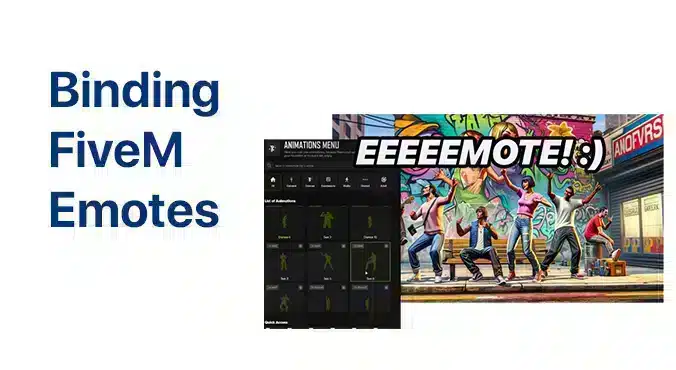
Open the FiveM client console with F8 and bind a key to the emote command your server supports. First check the server’s emote menu or help: e, emote and animation names belong to the installed resource and are not universal.
Check the emote before binding it
Try the command in the server chat. For example, if /e wave works there, use this in F8:
bind keyboard F3 "e wave"This example binds F3 to that command. It will not create an emote the server does not provide. Choose a key that is not already needed for another menu or action.
Test and remove the binding
Close the console and press the chosen key. Check it while standing, in a vehicle and with commonly used menus open. To remove the example binding, open F8 and run:
unbind keyboard F3If the key does nothing
If the emote also fails in chat, check its name and availability with the server staff. If chat works, check the F8 command, quotation marks and key name. For a menu conflict, remove the binding and choose another key. A binding working on one server does not prove that the command exists on another.
For server owners
Publish one working bind example, its matching unbind command and the place where players can find your actual emote list. Review these after resource updates. Test restraints, combat and job interactions before recommending animations that could interfere with them.