





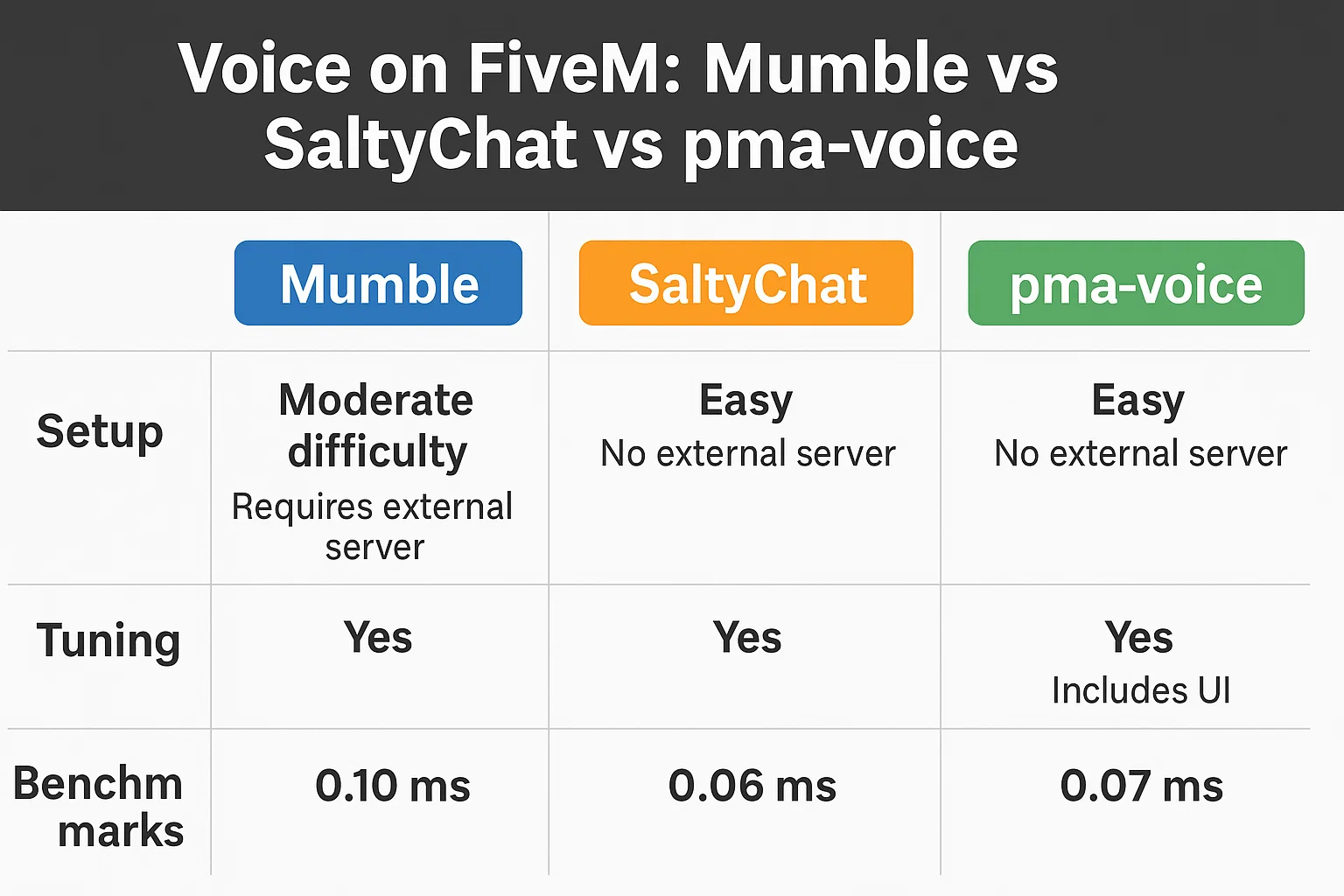
Choose one voice system that your radio and phone resources support, then test proximity, radio and calls independently. pma-voice uses FiveM’s built-in Mumble transport; SaltyChat adds a TeamSpeak client/plugin workflow. Neither choice guarantees a particular latency or sound quality on your server.
The configuration and code examples here target FiveM for GTA V Legacy. Enhanced has different runtime and compatibility rules; check Cfx.re’s Legacy-to-Enhanced changes before applying them to an Enhanced server.
Choose by dependencies
List the voice integration required by your phone, radio, HUD and framework. For an existing mumble-voip installation, audit those dependencies before changing it. For SaltyChat, include the supported TeamSpeak client/plugin, server and player setup instructions in the decision.
Read the pma-voice README or SaltyChat FiveM resource documentation for the version you install. Keep the old resource and configuration available for rollback.
Install pma-voice on a test server
Place the complete resource in a folder named pma-voice. Disable competing voice management, including vMenu voice if present, and verify that other scripts do not override its proximity natives. Preserve phone/radio integrations for review rather than assuming their exports match.
For a native-audio setup, put the following settings before the resource startup in the active server.cfg. Do not simultaneously enable a conflicting 2D or 3D audio mode:
setr voice_useNativeAudio true
setr voice_useSendingRangeOnly true
setr voice_enableRadios 1
setr voice_enableCalls 1
setr voice_enableSubmix 1
ensure pma-voice
Compare these options with your release’s README. Older integrations may use the previous phone-named options; current upstream documents voice_enableCalls and voice_defaultCallVolume. Enabling a module does not create a complete phone or radio UI.
Check player controls
Ask two test players to choose their actual microphone/output device and verify microphone permission in Windows. In FiveM’s key bindings, inspect the entries registered by the voice resource. pma-voice’s upstream defaults include F11 for proximity and Left Alt for radio; an existing player’s saved binding can differ.
Changing the server’s default key does not overwrite every existing player’s saved preference. Resolve key conflicts in that player’s settings.
If using SaltyChat
Install the server resource and the supported TeamSpeak plugin/client combination following their matching release instructions. Configure the TeamSpeak server identity, channel and any required access settings privately. Provide players with the correct server and plugin instructions.
Verify TeamSpeak connection and plugin loading first, then FiveM proximity, then radio/calls. A working TeamSpeak conversation outside the game does not establish that the FiveM integration is working.
Run the voice test matrix
- With two ordinary player accounts, test speech nearby and outside each configured proximity range.
- Join the same authorized radio channel and test both directions; then test a player without access.
- Place, answer and end a phone call. Confirm its audio state clears after hang-up.
- Reconnect and restart the test server. Check that radio/call state is restored or cleared as intended.
- Test interiors, vehicles and routing buckets used by your server. Record exactly where audio behavior differs.
Diagnose one layer at a time
No microphone input: inspect the selected device and OS permission. Proximity works but radio fails: inspect radio membership, item/permission logic and integration exports. Calls fail after an update: compare the phone integration with the installed voice API. Echo or unexpected effects: inspect duplicate voice managers and audio modes.
Read resource logs before changing settings. Use client Resmon only for script timing; it is not an end-to-end audio latency test. If comparing voice quality, use the same devices, network and scene and retain the actual observations.