





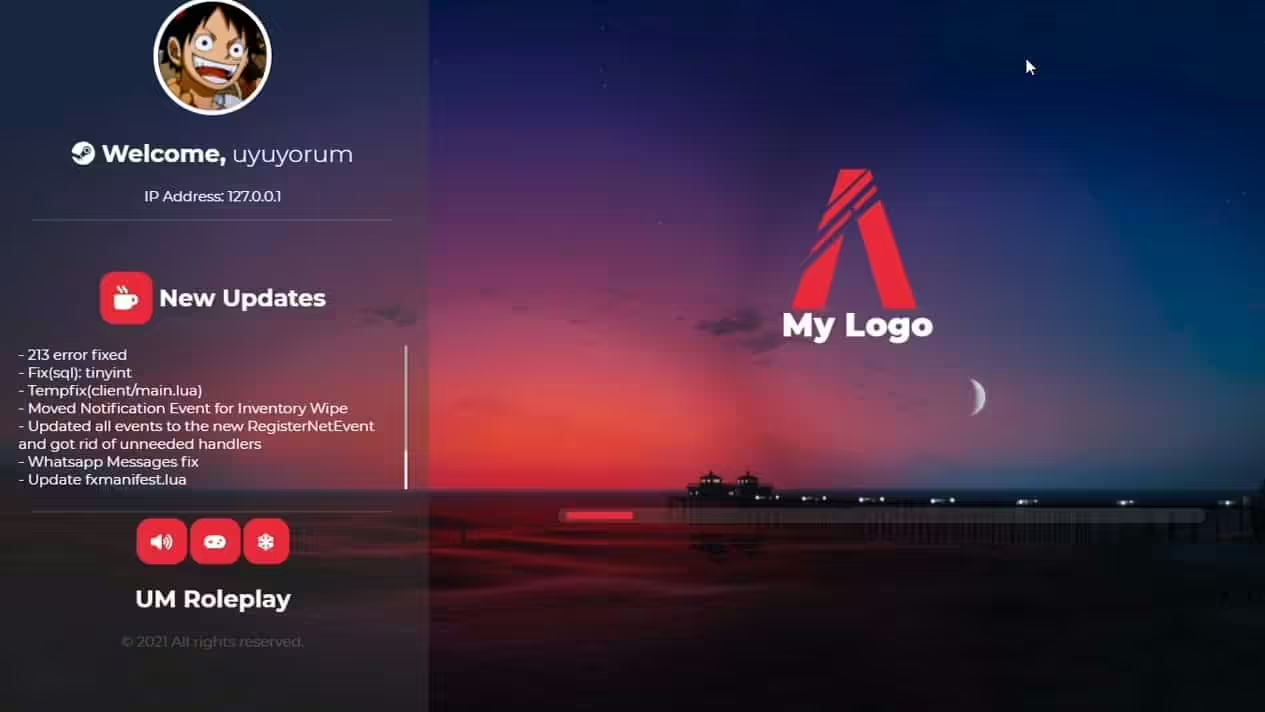
A current FiveM loading screen is an NUI resource declared with loadscreen in fxmanifest.lua. Keep the first version local and small: one HTML document, one stylesheet and one script. Add progress or server handover data only after the basic screen opens and closes correctly.
The configuration and code examples here target FiveM for GTA V Legacy. Enhanced has different runtime and compatibility rules; check Cfx.re’s Legacy-to-Enhanced changes before applying them to an Enhanced server.
Back up the existing resource and keep the default automatic shutdown first. A broken manual-shutdown script can leave players looking at the loading screen after the game is ready.
Resource structure
resources/[local]/my_loadscreen/
├── fxmanifest.lua
└── html/
    ├── index.html
    ├── style.css
    └── app.js
fxmanifest.lua:
fx_version 'cerulean'
game 'gta5'

author 'Your name'
description 'FiveM loading screen'
version '1.0.0'

loadscreen 'html/index.html'

files {
    'html/index.html',
    'html/style.css',
    'html/app.js'
}
New resources should use fxmanifest.lua. Do not add a legacy __resource.lua fallback. The directives are defined in the official resource manifest reference.
Create accessible HTML
html/index.html:
<!doctype html>
<html lang="en">
<head>
  <meta charset="utf-8">
  <meta name="viewport" content="width=device-width,initial-scale=1">
  <title>Connecting to Example RP</title>
  <link rel="stylesheet" href="style.css">
</head>
<body>
  <main>
    <h1>Connecting to Example RP</h1>
    <progress id="progress" value="0" max="1" aria-label="Loading progress"></progress>
    <p id="status" aria-live="polite">Loading server resources…</p>
  </main>
  <script src="app.js"></script>
</body>
</html>
Use text that remains readable over the background, respects reduced motion and does not depend on autoplay audio. Compress images and video before packaging them; every client has to download the resource.
Add the stylesheet
Save this as html/style.css; it supplies the stylesheet referenced by the HTML:
body { margin: 0; min-height: 100vh; display: grid; place-items: center;
  background: #15212b; color: #fff; font: 20px/1.6 system-ui; }
main { width: min(620px, 85vw); }
progress { width: 100%; height: 20px; accent-color: #6cd6ba; }
Read the documented loading progress event
html/app.js:
const progress = document.getElementById('progress');
const status = document.getElementById('status');

window.addEventListener('message', (event) => {
  if (event.data?.eventName !== 'loadProgress') return;

  const value = Number(event.data.loadFraction);
  if (!Number.isFinite(value)) return;

  const clamped = Math.max(0, Math.min(1, value));
  progress.value = clamped;
  status.textContent = `Loading ${Math.round(clamped * 100)}%`;
});
The official Cfx.re loading-screen guide documents loadProgress and the other events exposed to this NUI frame. Treat event data as input and update text with textContent, not innerHTML.
Pass only safe handover data
A server-side playerConnecting handler can pass small values with deferrals.handover. FiveM exposes them as window.nuiHandoverData. Use this for display values such as a player name; never include secrets, tokens, private identifiers or data that grants an entitlement. Insert player-controlled values with textContent or innerText.
Enable manual shutdown only when required
If the screen must fade out after client scripts start, add these lines:
loadscreen_manual_shutdown 'yes'
client_script 'client.lua'
The example below closes it from client.lua when the network session starts. If your framework requires character selection first, use its documented ready signal instead:
CreateThread(function()
    while not NetworkIsSessionStarted() do
        Wait(100)
    end

    ShutdownLoadingScreenNui()
end)
Test reconnects, resource restarts and a slow client. If the screen can remain stuck, remove loadscreen_manual_shutdown and the client script to return to automatic lifecycle handling.
Deploy and verify
- Add
ensure my_loadscreento the intended point inserver.cfg. - Use
refreshandensure my_loadscreenon a development server. - Connect with a clean client and inspect F8 plus the server console.
- Test a slow connection, reconnect, cancelled connection and server restart.
- Check common desktop resolutions and a low-powered client before replacing the production resource.