





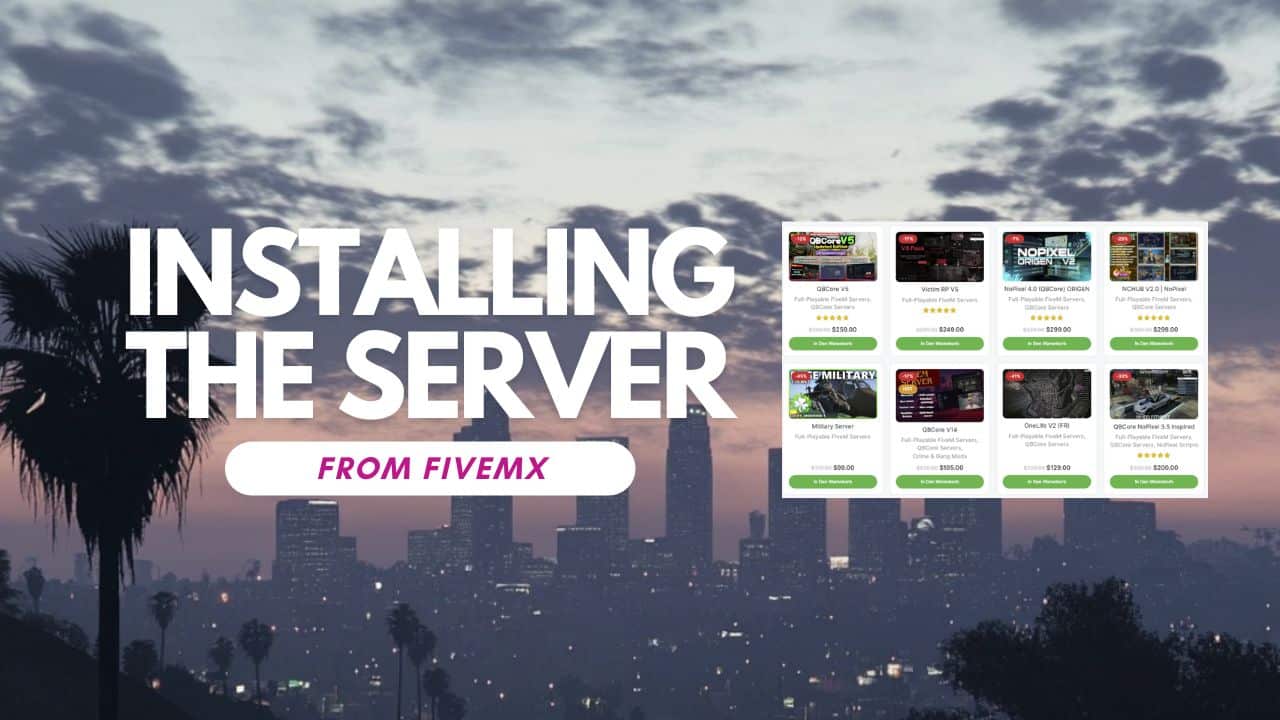
Install a FiveM server template into an isolated server-data directory and a new database, following the documentation for that exact package. Confirm the core player flow before importing existing player data or opening the server publicly.
Collect the required files
Download the authorized package from your order’s download location and keep the original archive and installation notes. Record the framework version, required database engine, artifact requirements, dependencies and account-bound licenses.
For a RPCrate purchase, use your account downloads. The package’s own instructions determine its archive layout and update procedure. If those are missing, request them before guessing at SQL or startup settings.
Prepare the environment
- Set up FXServer using the official operating-system-specific procedure. Keep server binaries, server-data and txAdmin profile data distinct.
- Install the database engine and version supported by the template. Create a fresh database and a dedicated account limited to it. Do not point the template at your existing live database.
- Back up the current server if replacing one. Extract the template into the location its deployment procedure expects; the resources folder and server.cfg must not be hidden beneath an accidental extra archive folder.
- Review the supplied SQL before importing it into the new database. Check its selected database, schema changes and sample accounts. Stop on errors rather than rerunning a destructive import blindly.
Worked example: review a named database reset
For the first import, use an isolated database instance when a package’s SQL contains a fixed database name or destructive statements. Check DROP DATABASE, CREATE DATABASE and USE statements before execution. Selecting a new database in a graphical client is not sufficient when the file itself selects or recreates another schema.
The current QBCore V5 setup notes identify QBV5/[sql]/fivemstore.sql and warn that it drops and recreates fivemstorev5. Keep existing databases outside the test instance, inspect the statement, import there, then check the actual fivemstorev5 schema and import log. Configure the package against the database you verified using an appropriately limited account.
The separate September 8 package audit checked archive integrity and an isolated SQL import. It did not verify a live FXServer start. Treat those as separate stages: continue with the runtime and player-session checks below rather than assuming a successful import proves the server works.
If package instructions or dependencies are unclear, send the exact product URL, environment and first error to RPCrate support, with credentials removed. This example establishes the behavior of that V5 file; it does not establish that other packages use the same database name or import procedure.
Configure only the documented settings
Set the database connection in the server-side location used by the actual adapter. Do not invent Config.MySQLConnection or put passwords in shared Lua files. Preserve the template’s dependency order until its documentation explains a change.
Use the owner’s current Cfx.re Portal server key in sv_licenseKey. Keep it private. Set the actual TCP/UDP endpoints, supported slot limit and public description using the server-command reference. Steam API keys, if required by a resource, are secrets and must not be published with sets.
Start with the correct launch context
Use the txAdmin profile or documented launcher that points to this server-data configuration. A relative +exec server.cfg resolves in the launch context; starting from the wrong directory can load no configuration or the wrong one.
Read the first startup error. Check missing resources, database authentication, version requirements and entitlements before adding more resources. Restrict administration ports separately from the public game endpoint.
Verify a complete session
- Join with the intended game endpoint. Use 127.0.0.1 only when client and server run on the same machine.
- Create a test character and exercise inventory, money, jobs, voice and any essential interaction. Compare an ordinary account with an administrator.
- Reconnect and restart the server, then check that expected data persists exactly once.
- Restore a backup into a separate test environment. Record every file and dependency needed for recovery.
- Schedule the public cutover only after these checks pass. Keep the previous server and matching database available until acceptance.
When an installation fails
Share the package version, environment, first complete error and steps already tried with the package’s support contact. Remove credentials and personal data from logs. A nil value alone does not prove that a SQL table is missing.
after purchasing and trying to download the link it says invalid destination
Bonjour j’ai la même chose je nàrrive pas à aller vers le lien v10 de super esx, j’ai accès seulement au v7
i paid for one yesterday and the download file say invalid i contacted support but no anwser yet
hey luke when you contact me???
i need for help